Settings Guide
This section mirrors the current in-game /qui options panel and is best used once you already know which parts of QUI you want to tune more deeply.
If you are still setting up, start with Getting Started or the Features section first. Come back here when you want the detailed reference view.
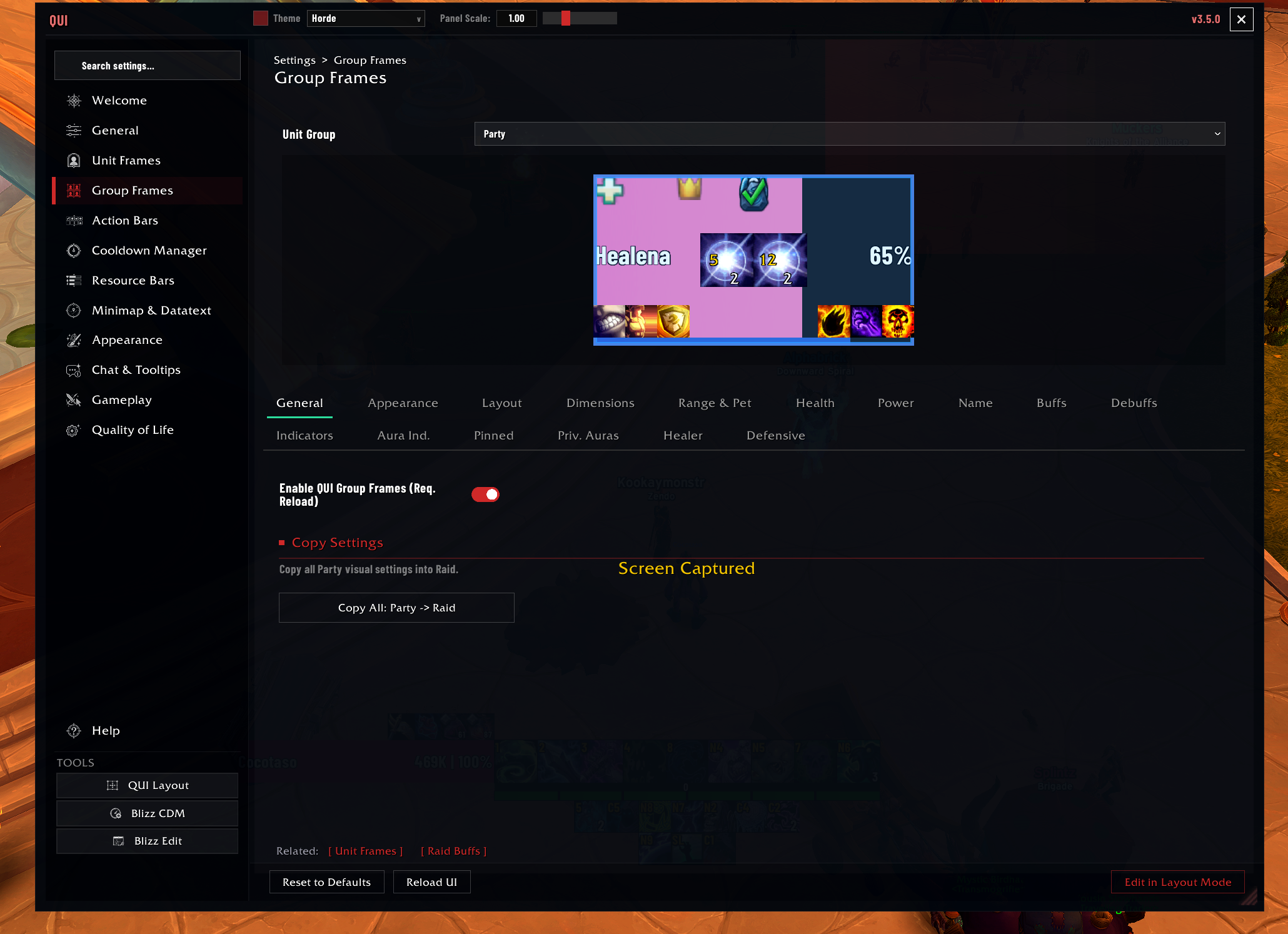 The current
 /qui window uses a left-hand feature sidebar, breadcrumbs across the top, and page-specific tabs inside each tile.
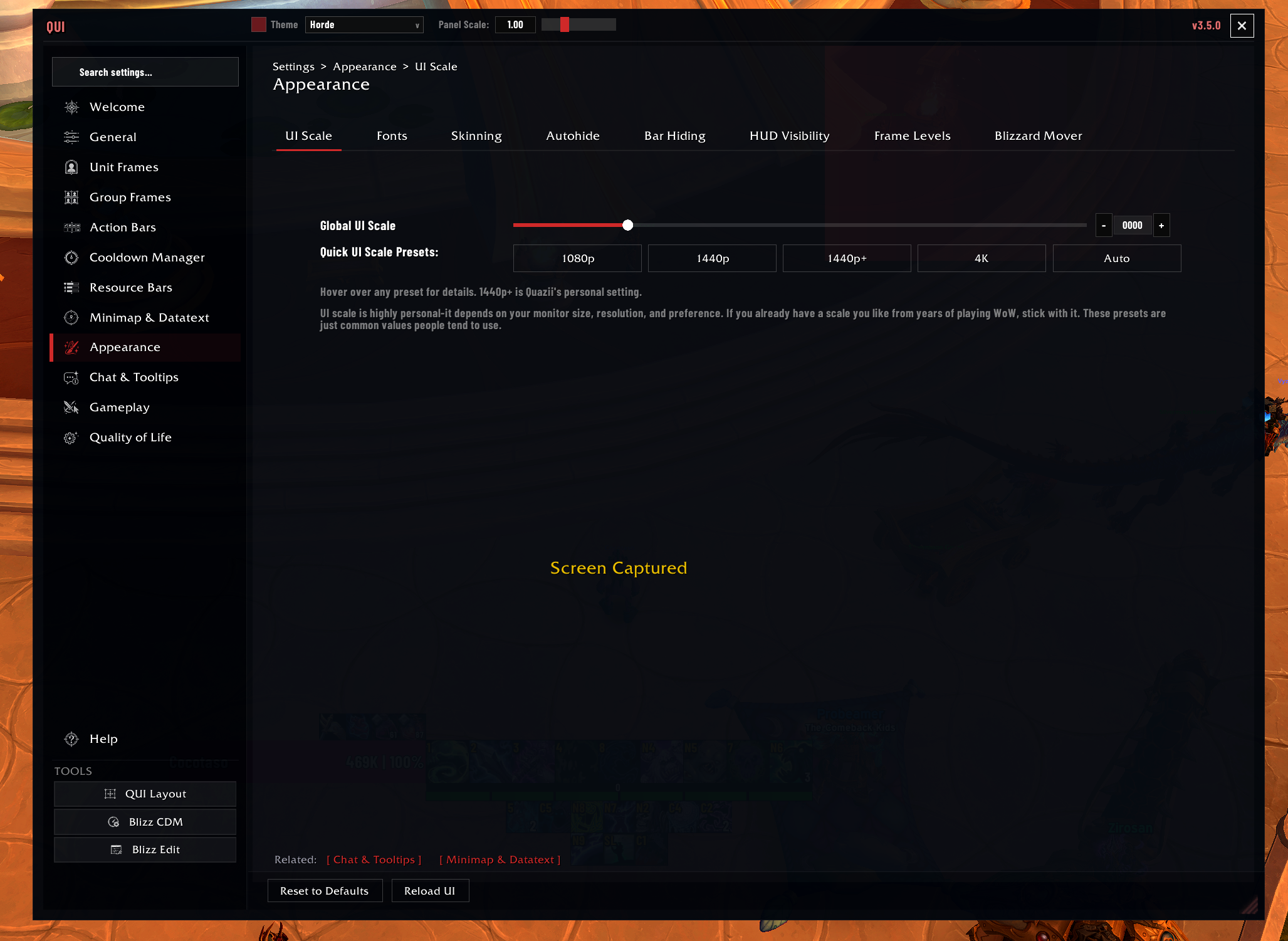 The Appearance tile is where theme, panel scale, fonts, skinning, and other shared presentation controls live.
Most-Visited Tiles
- General for profiles, import/export, integrations, and click-cast bindings
- Module Addons for enabling or disabling whole QUI feature addons
- Unit Frames and Group Frames for combat frame setup
- Action Bars and Cooldown Manager for your main combat HUD
- Minimap & Datatext and Info Bar for utility widgets
- Appearance for UI scale, fonts, autohide, HUD visibility, and frame levels
- Bags and Alts for optional inventory and account-wide tracking
- Quality of Life for session helpers and automation
Main Feature Tiles
The main sidebar in /qui currently contains these top-level tiles:
| # | Tile | Description |
|---|---|---|
| 1 | Welcome | First-time setup wizard and version info |
| 2 | Module Addons | Enable or disable QUI feature addon folders |
| 3 | General | Profiles, import/export, integrations, and click-cast setup |
| 4 | Unit Frames | Player, target, focus, pet, boss, and aura presentation |
| 5 | Group Frames | Party and raid frame configuration with preview and layout tools |
| 6 | Action Bars | Global action bar behavior, buff/debuff styling, and per-bar overrides |
| 7 | Cooldown Manager | CDM containers, tracked spells, appearance, effects, and keybind overlays |
| 8 | Resource Bars | Class resources and related combat bars |
| 9 | Minimap & Datatext | Minimap controls plus datatext panel settings |
| 10 | Info Bar | Optional top/bottom datatext bar, widget zones, micro menu, travel, and spec tools |
| 11 | Bags | Optional bag, bank, Warband bank, guild bank, search, sorting, and currency bar |
| 12 | Alts | Optional account-wide roster, equipment, currencies, reputations, weeklies, and item search |
| 13 | Appearance | UI scale, fonts, skinning, autohide, HUD visibility, frame levels, Blizzard mover, damage meter |
| 14 | Chat & Tooltips | Chat styling, optional QUI Chat, tooltip behavior, and related readability settings |
| 15 | Gameplay | XP tracker, keystones, skyriding, combat helpers, raid buffs, and more |
| 16 | Quality of Life | FPS preset, automation, popups, salvage, consumables, panel, and reload behavior |
| 17 | Help | Built-in help content and quick reference |
General Tile Pages
The General tile is where the cross-feature setup pages now live:
| Page | Use it for |
|---|---|
| Profiles | Creating, copying, deleting, and auto-switching profiles |
| Import / Export | Bundled presets and shareable setup strings |
| Integrations | Integration and anchoring setup for compatible tools |
| Click-Cast | Mouse-binding setup for unit and group frame interactions |
Common Page Tabs
Many tiles then split again across a page-level tab strip. The most common examples are:
| Tile | Typical page tabs |
|---|---|
| Action Bars | General, Buff/Debuff, Per-Bar |
| Minimap & Datatext | Minimap, Datatext |
| Appearance | UI Scale, Fonts, Skinning, Autohide, HUD Visibility, Frame Levels, Blizzard Mover |
| Quality of Life | FPS Preset, Combat Text, Automation, Popups, Salvage, Consumables, Macros, Distance, Panel, Reload |
How To Use This Section
- Use it when you want the detailed toggle-by-toggle reference.
- Use the Features pages when you want plain-language guidance first.
- Use
/qui layoutwhen you need to drag or place frames on screen; use/quiwhen you want feature settings, toggles, styling, and behavior.