Getting Started
This section is the fastest route from a fresh install to a working, comfortable QUI setup.
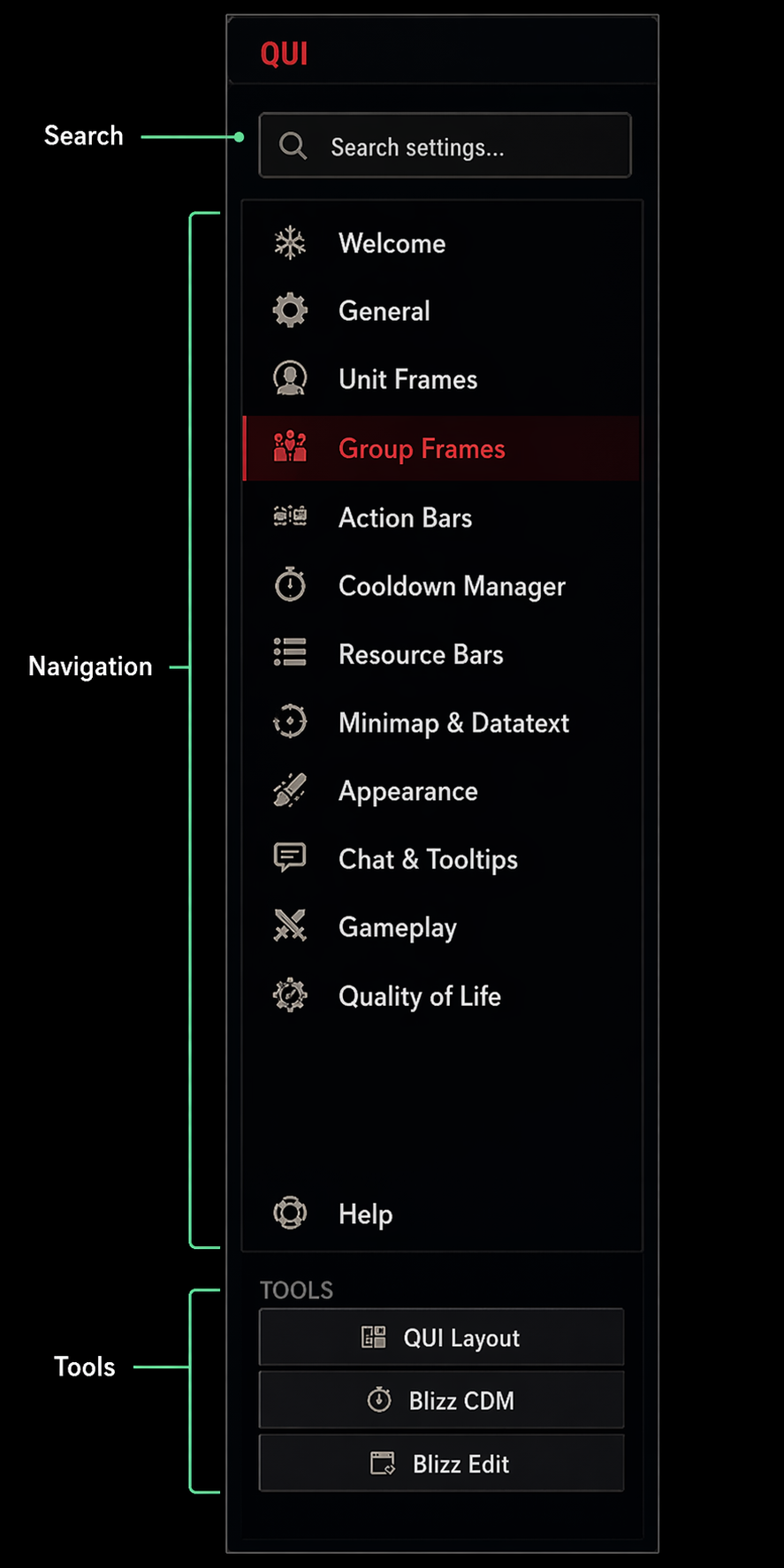 Actual QUI sidebar and tools strip, showing where to search, browse features, and open layout-related tools.
Recommended 10-Minute Setup
- Install QUI with your addon manager or manually.
- Open
/quiin game. - Review Module Addons and enable only the optional modules you want to test.
- Import the bundled base layout and a profile you want to start from.
- Reload once so everything settles into place.
- Enter
/qui layoutto move your frames and open the layout-side settings.
If you only read one page after this one, make it First Setup.
In This Section
- Installation for app-based and manual installs.
- First Setup for the exact order most players should follow on first login.
- Module Addons for the QUI 4 feature-addon model and reload rules.
- Profiles for shared setups, character-specific setups, and imports.
- Slash Commands for the commands you will actually use day to day.
- FAQ for short answers to the most common setup questions.
- Troubleshooting for missing frames, hidden bars, reload prompts, and other common friction points.
Good To Know Up Front
- Layout Mode matters. Major HUD pieces like CDM, Group Frames, and Minimap controls are managed there, not only from
/qui. - QUI is modular. Bags, Info Bar, Alts, Group Frames, and QUI Chat are opt-in modules. Enable them from Module Addons when you are ready.
- Profiles save time. Starting from a profile and then tuning it is much faster than building everything from scratch.
- A reload is normal. Some secure UI pieces need one reload when you first enable or swap them.