Group Frames
QUI Group Frames are an opt-in party and raid frame system built for players who need more control and more information than the default group UI provides.
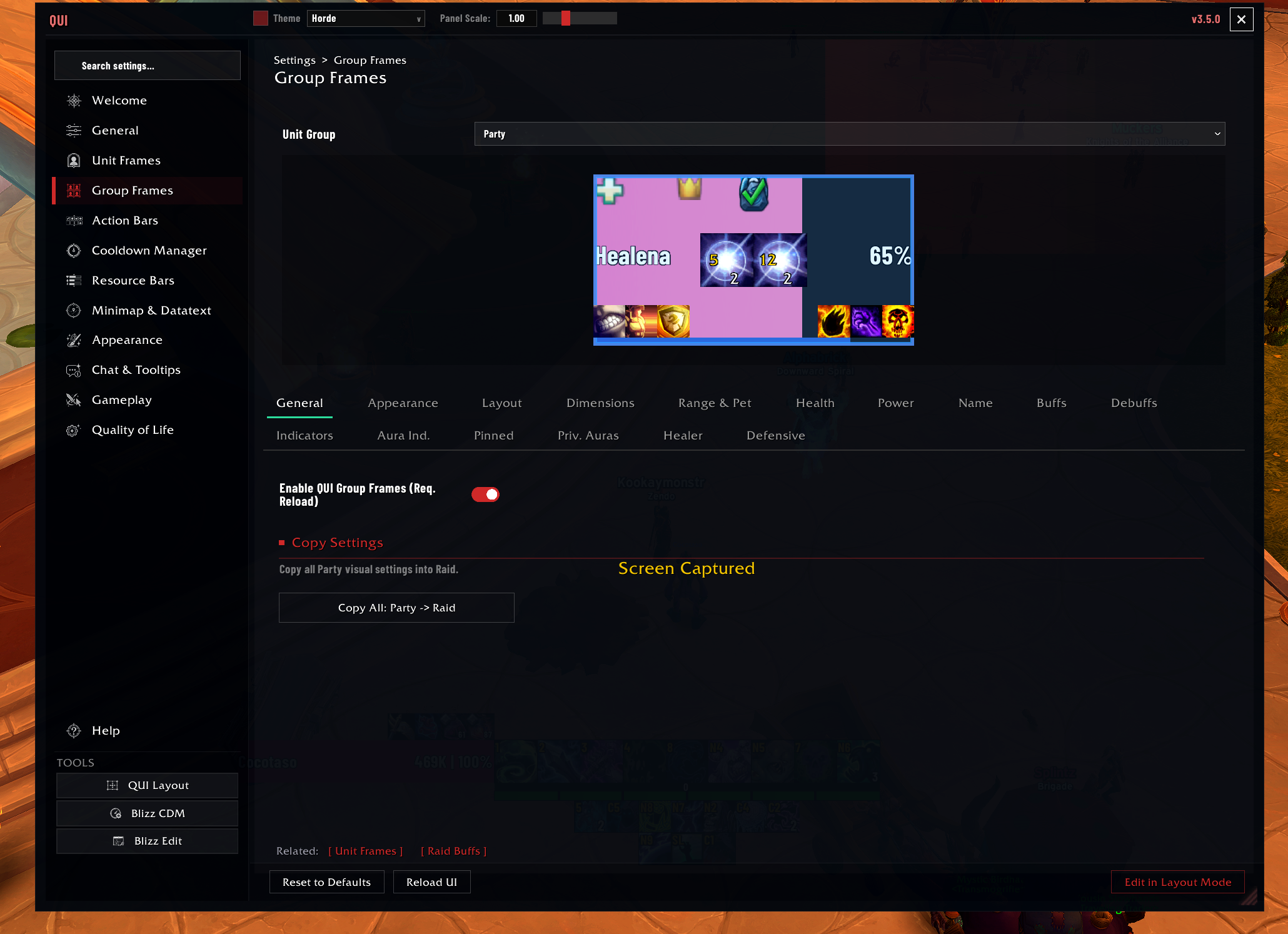 The Group Frames page in
 /qui, with the unit-group selector, preview frame, and detailed page tabs visible.
Important First Note
Group Frames are disabled by default. QUI does not take over your party or raid frames unless you tell it to.
How to Enable
- Open
/qui> Module Addons and enable Group Frames. - Reload if prompted.
- Open
/quiand select Group Frames. - Choose the unit group you want to work on, such as Party or Raid.
- Toggle Enable QUI Group Frames if the profile-level setting is off.
- Use Edit in Layout Mode only when you want to move the frames on screen.
Most group frame behavior is configured directly from the main /qui page. Click-casting is configured separately under General > Click-Cast.
Who Should Turn Them On
- Healers who need strong dispel, HoT, buff, and debuff visibility
- Support players who want better group awareness
- Raid players who dislike the feel of default group frames
- Anyone who wants separate party and raid layouts
Important Settings
| Setting | Description | Default |
|---|---|---|
| Enable | Master toggle for group frames | Disabled |
| Sort by | Role, index, or name | Role |
| Group by | GROUP, ROLE, or CLASS | GROUP |
| Health display | Percent, absolute, both, or deficit | Percent |
| Party level text | Optional level number on party frames | Disabled |
| Max debuff icons | Number of debuff icons shown per frame | 3 |
| Range check alpha | Opacity for out-of-range members | 0.4 |
| Click-casting | Enable click-cast bindings | Disabled |
| Spotlight | Pin members by role/name | Disabled |
| Castbar | Show castbars on group frames | Disabled |
| Pet frames | Show pet frames | Disabled |
| Targeted Spells | Show enemy cast icons on targeted group members | Enabled |
| Missing Raid Buff element | Show icons when raid buffs are missing | User-added |
Best First Tweaks
- Enable the frames and reload.
- Use test mode to preview party or raid sizes without waiting for a real group.
- Set the size and spacing before turning on lots of indicators.
- Add click-casting only after the frames already feel readable.
- Turn on castbars only if you truly need them.
What Makes Them Powerful
- Auto-scaling layouts for party, small raid, and large raid contexts
- Separate party and raid profiles
- Optional party-frame level text with independent font and placement
- Click-casting with spec-based bindings
- Healer-focused indicators like dispels, my-buffs, and defensives
- Spotlight rules and sorting controls for keeping important players visible
- Range fading, aura handling, and optional power or cast information
Auras
Buff/debuff auras, pinned auras, and indicators all share a single unified Auras model. Configure them under the Auras section of the Group Frames page. The settings preview mirrors the exact bucket you are editing, so what you see while configuring matches what shows in-game, and the in-combat render path is faster and lighter.
Your existing aura settings carry over automatically. If anything looks off after updating, re-check the Auras section of the Group Frames options.
Targeted Spells
Targeted Spells show enemy nameplate cast icons on the group member being targeted by that cast. Configure them under Group Frames > Auras > Targeted Spells for both party and raid contexts.
Missing Raid Buff Element
Use Add Missing Raid Buff in the Auras element list when you want group frames to show missing Arcane Intellect, Power Word: Fortitude, Battle Shout, Mark of the Wild, Skyfury, or Blessing of the Bronze. Leave Auto-Detect My Buff enabled to show only the raid buff your current class can provide, or turn it off to choose individual buffs manually.
Dispel & Defensive Indicators
Dispel and defensive indicators clear as soon as the aura ends, so they will not stay lit on a frame after the effect is gone. Bottom-anchored defensive indicators sit clear of the power bar instead of overlapping it.
Power Bars
When Show Power Bar is off — either globally or for a specific role via role filters — the space it would have used is reclaimed, so frames no longer show a stale gap. The health bar’s bottom padding stays in sync with the power bar’s actual height and visibility.
Good To Know
Group frames require a UI reload when first enabled or disabled. This is because they replace Blizzard’s secure group frame headers, which can only be swapped at load time.
Click-casting bindings are stored per-specialization. If you play multiple specs (e.g., Holy and Retribution on a Paladin), each spec can have completely different click-cast setups.
Test mode is invaluable for configuring raid frames. You can preview how your frames look with 5, 10, 20, or 40 players without needing to join an actual group. Access it from the Group Frames settings.
Enabling castbars on group frames in a 40-player raid can impact performance. If you notice frame rate drops in large groups, consider disabling group frame castbars.