First Setup
If you want QUI to feel right quickly, follow these steps in order. This is the setup path most players should use on their first login.
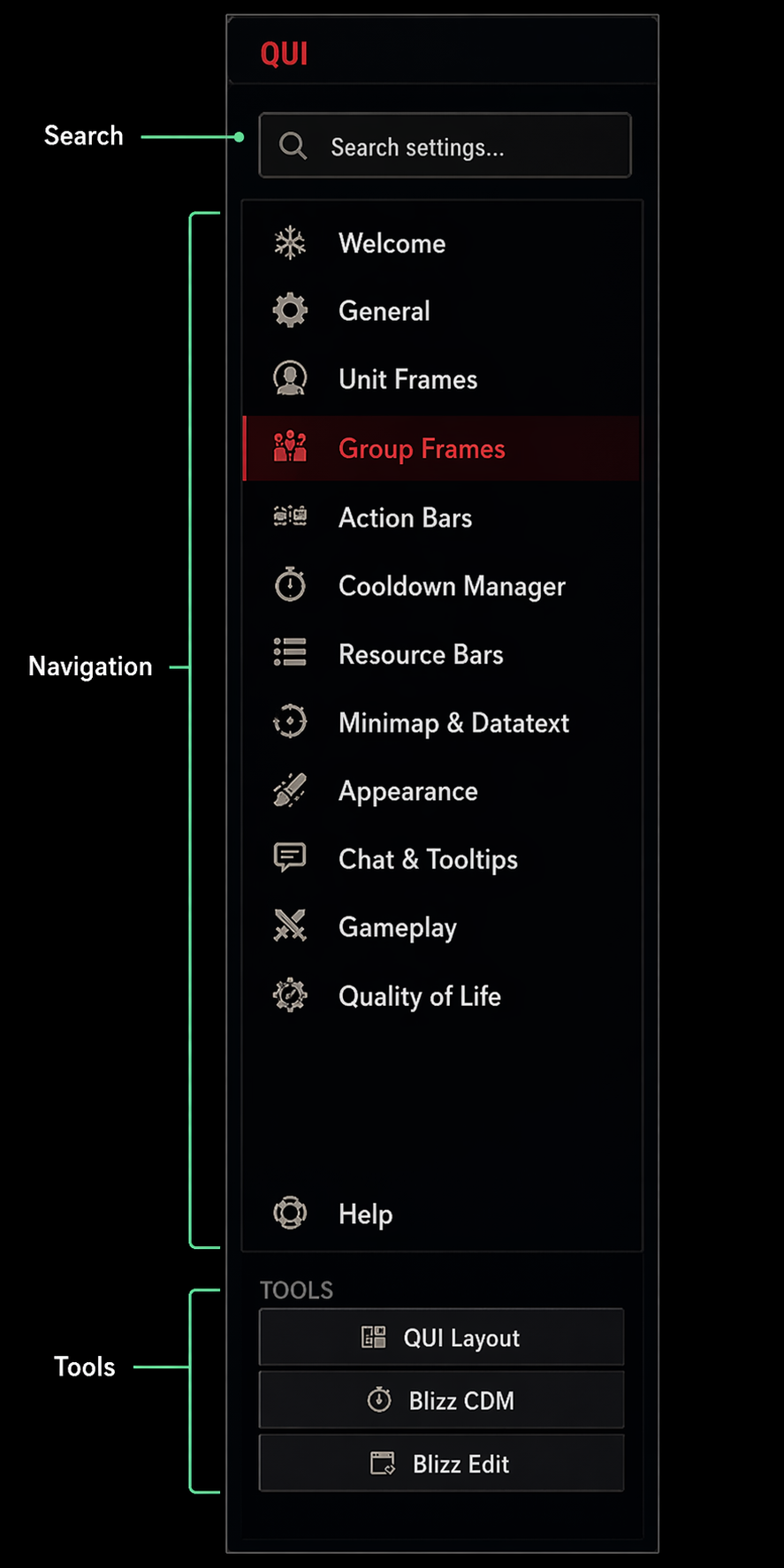 Actual QUI navigation panel, which is the quickest way to move between setup areas while you are getting started.
Step 1: Open QUI
Type /qui in chat to open the main settings window.
This is the control center for feature tiles like Action Bars, Unit Frames, Group Frames, Appearance, and Quality of Life, plus the General tile for profiles and import/export tools.
Step 2: Choose Optional Modules
Open Module Addons before changing lots of settings. QUI 4 ships as a suite, and some large systems are intentionally off until you enable them.
Good first-login defaults:
- Leave Action Bars, Cooldown Manager, Unit Frames, Resource Bars, Minimap, Datatexts, Skinning, Quality of Life, and Damage Meter enabled unless you know you do not want them.
- Enable Group Frames if you want QUI party or raid frames.
- Enable QUI Chat only if you want the custom QUI chat display.
- Enable Bags, Info Bar, or Alts only when you are ready to test those newer beta modules.
If QUI prompts for a reload after toggling a module, use /rl.
Step 3: Import the Base Layout
QUI is designed around a specific base layout. Importing that layout first gives the rest of the addon a clean starting point.
- Open QUI settings with
/qui. - Open General > Import / Export.
- Select the QUI Edit Mode Base preset and copy the Edit Mode layout string.
- Open Blizzard’s Edit Mode (press
Escape>Edit Mode, or use the keybind). - Click Import in Edit Mode and paste the string.
- Apply the imported layout.
Step 4: Import a QUI Profile
The layout handles placement. The profile handles how QUI itself behaves.
- In
/qui, navigate to General > Import / Export. - Select a bundled preset or paste a current QUI profile string.
- Click Import to apply the profile.
If you prefer to build your own look later, you can still start from a bundled profile and gradually change it.
Step 5: Reload Once
Type /rl to reload the UI. This ensures all settings are fully applied.
Step 6: Enter Layout Mode
Type /qui layout to enter Layout Mode. This is where you can:
- Reposition CDM bars, unit frames, group frames, chat windows, damage meter windows, minimap-related panels, and other QUI elements.
- Use the mover-side controls for quick placement adjustments while you arrange the HUD.
- Fine-tune spacing, anchoring, resize behavior, and visual grouping until the HUD feels natural on your screen.
- Click Save when you are done.
Step 7: Do a Quick Comfort Pass
Before you head into real content, spend two minutes checking:
- Are your action bars visible the way you expect?
- Is the Cooldown Manager close enough to your character to read comfortably?
- Do your player and target frames sit where your eyes naturally go?
- If you heal or support, do you want to enable Group Frames now or later?
- Do you want the optional QUI Chat, Bags, Info Bar, or Alts modules now, or after you have your main HUD settled?
Important Notes
-
Action bars may fade on mouseover. If they seem to be missing, move your mouse over the bottom-center area first.
-
CDM is one of the main reasons people use QUI. If you do not immediately love where it is sitting, move it before judging the addon.
-
Some important settings live in Layout Mode. CDM, Group Frames, and Minimap-related tuning are not only in the main
/quiwindow.
Tip: Anchored Frames
Layout Mode now keeps anchored children attached while you drag their parent. If an anchored chat or damage meter window refuses to move or resize, hold Shift to detach it before dragging or resizing.
Tip: CDM Icon Size in Edit Mode
When positioning CDM bars in Blizzard Edit Mode, set the icon size to 100% on CDM bars. This prevents scaling conflicts between Edit Mode and QUI’s own scaling system.